VPN for Android: private, secure browsing on your phone
Encrypt your connection on Wi-Fi and mobile data with one tap.
Encrypts your traffic between your device and our servers
Always-on VPN keeps you protected after a restart
Hides your IP address from the sites you visit

3 days of Premium. No credit card needed.
Works on Android 8.0 or later.
Google Play and the Google Play logo are trademarks of Google LLC.

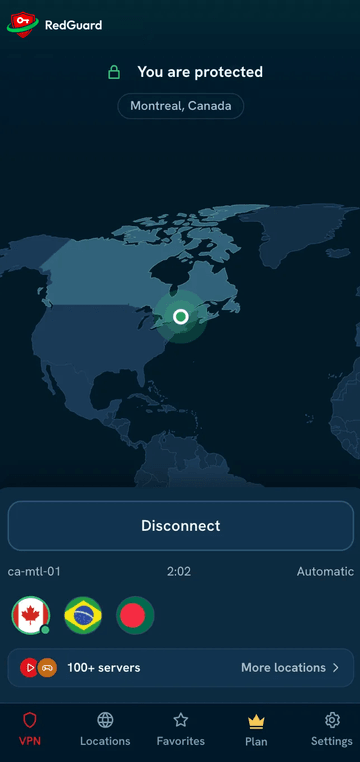
See the app
RedGuard VPN on your Android device.
Built for Android
The protection that matters, simple to use.

Strong encryption
On Wi-Fi and mobile data alike.

Connects by itself
Protection comes back after a network change.

Safe on public Wi-Fi
Cafés, hotels, airports and trains.

Every location on Premium
Pick a country, or let the app choose a nearby one.

No-logs policy
One policy for every app and every plan.

One account, 10 devices
Your phone, tablet and computers together.

Modern protocols
Choose the protocol that suits your network.

Help when you need it
Setup guides and a support team to contact.
System requirements
What your Android device needs.
Android 8.0 or later
Arm64 or x86_64 processor
60 MB of free storage
Permission to set up a VPN connection
Install in four steps
Download, install, sign in, connect.

1
Download
Tap the store badge above and install RedGuard VPN.

2
Install
Open the app once it has installed.

3
Sign in
Sign in, or create a free account.

4
Connect
Allow the connection request when Android asks, then tap Connect.
Setup tips for Android
Turn on “Always-on VPN” for RedGuard VPN in your network settings to stay protected after a restart
Set battery use for RedGuard VPN to “Unrestricted” so it is not paused in the background
Turn on auto-connect for unknown Wi-Fi networks
A key icon in the status bar shows when the VPN is on
Troubleshooting
Android stops the VPN in the background
Open Settings → Apps → RedGuard VPN → Battery and choose “Unrestricted”, so the system doesn’t pause the app.
The connection request doesn’t appear
Another VPN app may be set as Always-on. Turn it off in your network settings under VPN, then connect RedGuard VPN again.
Websites don’t load while connected
Choose another location in the app. If that doesn’t help, see Websites stop loading while connected.
Uninstall RedGuard VPN from Android
- Open Settings → Apps.
- Find RedGuard VPN and tap Uninstall.
- If you turned on Always-on VPN, it is switched off with the app.
Private, encrypted browsing on every device
Start with Premium for 3 days. No credit card needed.
3 days of Premium. No credit card needed.